


Roku Remote Control & TV Cast
4.891.00 Reviews
App Specs
- Version
- 1.3.2
- Updated On
- License
- Free
- Downloads
- 50,000+
- Developer
- PrizePool Studios
- Categories
- Tools
- Platform
- Android
Screenshots
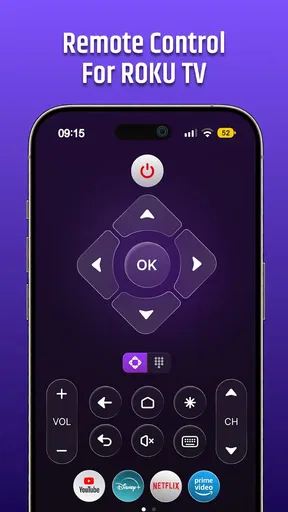
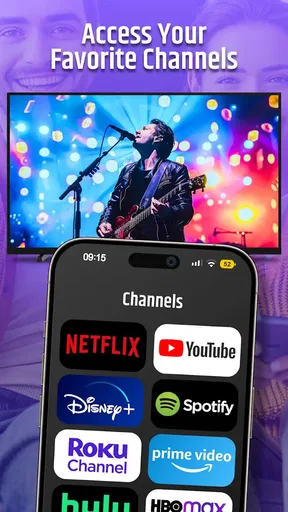
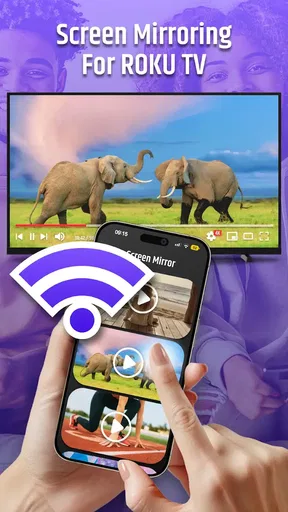
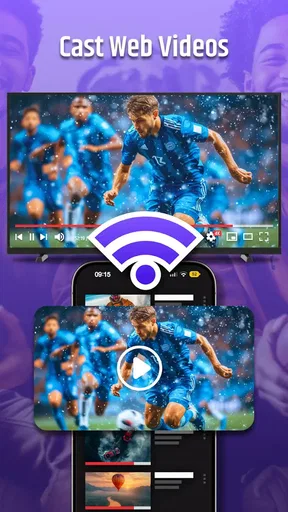
 Analysis by AppCompare
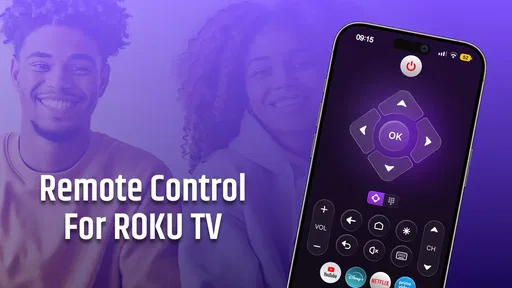
I tested Roku Remote Control & TV Cast in the kind of situation where a remote app either becomes genuinely useful or gets deleted quickly: a shared living room, several people wanting the television, and the physical remote never quite where it should be. Developed by PrizePool Studios, this free tools app turns an Android or iOS device into a way to control a Roku TV over Wi-Fi, send photos and videos to the television, and type without fighting an on-screen keyboard.
My first impression was that its value depends less on replacing every button and more on removing the small annoyances that happen around a shared screen. I could see it helping when someone wants to search for a show, when a guest needs a quick way to control the television, or when one person is trying to cast a phone photo without passing around the physical remote. The app has a 4.8 average from around 3.7 thousand ratings, which fits my overall experience: the central idea is simple, practical, and easy to understand.
How it fits into a shared living room
The strongest use case is not a private television used by one person with a phone permanently assigned to it. It is a household where control moves between people. One person may be watching, another may need to adjust playback, and a third may want to search for something. In that setting, a phone-based remote is convenient because the device is usually already in someone’s hand.
Imagine a normal evening: I am watching a program, another person wants to find a different title, and the physical remote has disappeared beneath a cushion. With Roku Remote Control & TV Cast, the immediate advantage is obvious. I can open the app, connect through the same Wi-Fi network, and use the phone rather than interrupting the room to search for batteries or move furniture. That is a modest improvement, but it is exactly the sort of repeated friction that makes a utility app worthwhile.
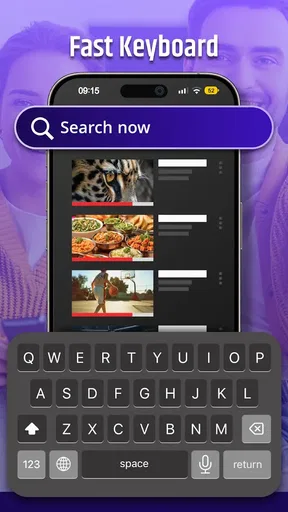
The typing feature is especially useful in this shared-device scenario. Entering a long title with directional buttons is slow and error-prone, while a phone keyboard is familiar. I found this more valuable than simply having another set of navigation buttons. Search terms, user names, and other text-heavy tasks benefit from the phone’s keyboard, although the exact behavior can depend on what the Roku screen is currently asking for.
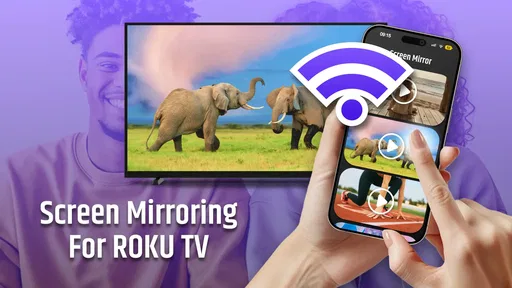
The casting side changes the app from a basic emergency remote into a more social tool. Sending a photo or video to the television can be handy after a trip, during a casual gathering, or when several people want to see something on a larger display. I would use it for a quick viewing session rather than treat it as a full media library. The best experience comes when the content is already easy to find on the phone and everyone agrees that it should appear on the shared screen.
That last point matters. A household television is a communal device, so convenience should not be confused with unlimited access. This app makes control easier for the people who are connected and ready to use it, but it does not turn a shared screen into a carefully managed personal space. I would establish a simple household rule: only connect when the room knows who is taking control, especially if several phones are nearby.
Worth Reading Before You Choose

EA SPORTS FC Mobile 26 Is a Bigger Football Game, but It Takes Time

Flipboard Shows What News Apps Must Do Beyond the Feed

Switching to Android Auto Means Rethinking Your Driving Routine

Google Calendar Makes a Crowded Week Easier to Manage

Ludo King Makes the Most of the Minutes Between Plans

Baby Panda World Brings Quick Play to Modern Phones, but Its Game Library Feels Busy
What the first connection is really like
The practical boundary is the Wi-Fi connection. The phone and Roku TV need to be reachable through the same local network for the remote relationship to work as intended. If the phone is using mobile data, connected to a guest network, or separated from the television by unusual router settings, the app may not find the device. That is not a flaw unique to this app, but it is the first thing I would check before assuming the remote is broken.
In my setup approach, I would begin with the television turned on, confirm the phone is on the household Wi-Fi, and then look for the Roku device from inside the app. If more than one compatible television is present, I would pay close attention to the device name before sending commands or casting anything. A clear naming habit on the television side can prevent the classic shared-home mistake of controlling the bedroom screen while everyone is sitting in the living room.
There is also a useful distinction between being able to discover a television and being ready to use every part of the app. Remote commands, text entry, and casting are related, but they are not identical tasks. If navigation works while a particular cast attempt does not, I would troubleshoot the content, network path, and current screen separately rather than reinstalling immediately.
Because this is a network remote, I would not choose it as the only way to operate a television in a home where the router is frequently switched off. The physical remote remains the reliable fallback for initial setup, network changes, and moments when the phone battery is low. A phone app is most useful as a second control surface, not as a reason to discard the original one.
The app is free to install, which lowers the barrier for trying it with a household television. It also includes in-app purchases ranging from $4.99 to $64.99 per item. I would look carefully at any purchase screen before confirming anything, particularly on a device used by more than one person. The free starting point makes experimentation easy, but shared-device users should keep the payment boundary clear so that convenience does not become an accidental charge.
Coordinating control without creating confusion
Multiple remote apps can be convenient, but they can also create a small coordination problem. If two people send commands at once, the television simply responds to the commands it receives; it does not know which person has the better reason to be in control. I would therefore treat the app like handing over the physical remote: one person leads, and others say when they want to take over.
A simple routine works well. Before casting, I would announce what is about to appear and check that nobody is using the television for something important. Before changing channels or launching a different app, I would confirm that the current viewer is finished. These are ordinary manners, but a phone remote makes impulsive control so easy that they become more important, not less.
Typing introduces another coordination detail. If I am entering a search while someone else is watching, I would avoid repeatedly changing the screen just to test suggestions. The phone keyboard is faster, but the result still appears on a public display. That makes the app useful for collaborative searching, while also making it sensible to keep private searches away from a television that children, guests, or housemates can see.
For photos and videos, I would use a deliberate selection workflow rather than browse casually in front of everyone. First choose the item on the phone, then confirm the television is the intended destination, and only then cast it. This reduces the chance of displaying the wrong image or sending personal material to the wrong Roku TV when several devices share the same network.
That is one of the less obvious trade-offs here: the app improves speed, but speed removes a pause in which people normally notice what they are doing. The physical remote forces a little friction. A phone can search, select, and send much faster, so household coordination has to replace that missing pause.
Privacy, age, and trust in a shared space
The Everyone content rating makes the app approachable for a broad household audience, but an age rating is not the same thing as a complete family-management system. I would be comfortable explaining the basic remote controls to an older child, while still making clear that casting and television control affect everyone in the room. The important lesson is not merely how to press a button; it is when it is appropriate to use it.
I would also keep account boundaries in mind. The app controls the Roku TV and can cast selected phone content, but that does not mean every person in the household should have unrestricted access to every account open on the television. If a child, guest, or housemate uses the phone, I would avoid leaving sensitive services or personal media ready for accidental selection. The app makes the television reachable; it does not decide which household information should remain private.
For adults sharing a home, trust is the practical requirement. Anyone who can connect successfully may be able to alter what is playing or send content to the screen, so I would not install it casually on every phone without discussing how the household wants to use it. In a trusted home, that is manageable. In a shared rental, guesthouse, or crowded network, I would be more cautious and keep the app limited to people who genuinely need control.
Parents may appreciate the convenience of typing and casting, but I would not present this as a substitute for supervision. It does not create a separate children’s viewing area, and it does not remove the need to discuss what can be shown on a common television. The app’s age suitability makes it easy to use, while the shared-screen context still calls for adult judgment.
Privacy also affects the casting decision. A photo that feels harmless on a phone can look very different when enlarged in front of visitors. I would preview the selection and check the destination every time, especially in a home with more than one Roku television. That small habit is more valuable than any promise of convenience because it addresses the real risk: sending the right content to the wrong place.
Where it beats the usual alternatives
The obvious alternative is the physical Roku remote. It remains better for tactile control, quick volume changes, and situations where the phone is occupied, charging, or out of reach. Someone who mainly watches familiar channels and dislikes looking at a phone while relaxing may prefer the original remote. I would keep it available even if this app becomes my everyday option.
A manufacturer-provided remote solution may be preferable for users who want the most direct connection to their television ecosystem. Roku Remote Control & TV Cast is attractive when I want a straightforward tool that combines control, phone typing, and casting in one place. Its usefulness comes from that combination rather than from replacing every specialized feature a dedicated ecosystem tool might offer.
Other generic remote apps can look similar, but I would judge them by how quickly they connect, how clearly they identify the television, and whether text entry and casting are actually convenient in daily use. A remote with many buttons is not automatically better. For me, the important question is whether I can get from opening the app to a successful search or cast without navigating a maze.
There is also a difference between this app and simply mirroring a phone screen. Casting a selected photo or video can be cleaner than displaying everything happening on the phone, because the phone remains available for other tasks. On the other hand, users who need broad screen mirroring rather than selected media may find a dedicated mirroring method more suitable. I would choose this app for targeted television control and media sharing, not assume it is a universal display solution.
The current version is 1.3.2, and it supports devices running Android 7.0 or later. That makes it relevant to many older phones, though compatibility on paper does not guarantee identical behavior across every handset, router, and Roku configuration. If the phone is old or the household network is complicated, I would test the basic remote first before depending on casting for an event.
Who should use it and who should skip it
I would recommend Roku Remote Control & TV Cast to someone who regularly loses the physical remote, searches for content often, or wants to show phone photos and videos on a Roku television. It is also a sensible choice for a household that wants one convenient control option without buying another accessory. The free entry point makes it easy to see whether the local network and television behave well together.
I would be more selective for a person who wants complete offline operation, physical buttons, or guaranteed control during Wi-Fi outages. This is a network-dependent app, so it cannot be the dependable answer to every television problem. It is also not my first choice for a very privacy-sensitive shared network where unknown devices may be able to discover the television.
Heavy streamers should think about their habits. If most viewing involves long sessions with constant playback adjustments, a physical remote may still feel more natural. If most frustration comes from searching, entering text, or finding the remote in the first place, the phone approach is much more compelling. The right choice depends on where the inconvenience occurs.
For guests, I would offer it only when the household is comfortable with the guest’s phone connecting to the same network and controlling the screen. For a family, I would explain the handoff rule and keep personal accounts and photos separate from casual use. For a shared apartment, I would agree on which television it controls and when casting is acceptable.
The developer, PrizePool Studios, has positioned this as a practical tool rather than a complicated media platform, and that focus works in its favor. The app is easiest to appreciate when I use it for a specific problem: search faster, operate the Roku when the remote is missing, or put a chosen phone video on the television. It becomes less convincing when I expect it to manage household permissions or replace every role of the physical remote.
My household verdict
After using it as a shared-living-room utility, I see Roku Remote Control & TV Cast as a useful companion rather than a total replacement. The combination of Wi-Fi control, phone-based typing, and photo and video casting addresses several real annoyances at once. The strongest benefit is not a flashy feature; it is the smoother handoff between people when the television is part of everyday household life.
I would install it on the phones of trusted household members, test the connection while the physical remote is still available, and agree on a simple rule for who is controlling the screen. I would also check every cast selection before sending it and review purchase prompts carefully because the app is free to start but offers optional in-app purchases.
Its limitations are clear enough to plan around: it relies on the local Wi-Fi setup, it does not replace the tactile reliability of a physical remote, and it should not be mistaken for family controls or account protection. Those points do not cancel out its usefulness; they define the situations where it works best.
With over 50 thousand installs and an Everyone rating, it has already found an audience among people looking for a simple Roku companion. My recommendation is positive for households that value quick searching and occasional casting. If your main problem is a missing remote or slow on-screen typing, this app earns a place on your phone; if your priority is offline reliability or strict access separation, keep the physical remote and choose a more controlled setup instead.
Pros
- Quickly replaces a misplaced or broken Roku remote.
- Offers convenient keyboard input for searches and passwords.
- Supports casting photos and videos to compatible Roku devices.
- Includes private listening with headphones on supported devices.
- Simple interface makes basic navigation easy for most users.
Cons
- Requires the phone and Roku device to share the same Wi-Fi network.
- Some features may be limited by Roku model or operating system.
- Private listening can drain the phone battery quickly.
- Casting support may vary between media formats and apps.
- Unofficial apps may display ads or request in-app purchases.
FAQs for Roku Remote Control & TV Cast
What is Roku Remote Control & TV Cast, and what can it do?
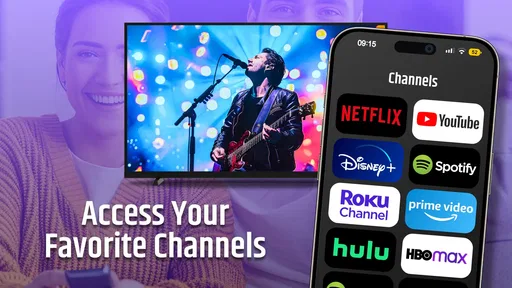
Roku Remote Control & TV Cast is a mobile companion app designed to control compatible Roku streaming devices and Roku TVs from an Android or iOS phone. It typically provides navigation buttons, playback controls, volume functions, keyboard input, and channel access. Depending on the device and app version, it may also support casting photos, videos, or music to the television. Features can vary by Roku model and operating system.
How do I connect Roku Remote Control & TV Cast to my Roku device?
Your phone and Roku device generally need to be connected to the same Wi-Fi network before pairing. After opening the app, allow it to search for nearby Roku devices and select the correct television or streaming player from the list. If the Roku does not appear, check that both devices use the same network, disable mobile data temporarily, restart the app, and verify that the Roku is powered on and connected.
Does Roku Remote Control & TV Cast work with every Roku TV or streaming player?
Compatibility is not identical across every Roku product. The app is intended for Roku TVs and Roku streaming players that are discoverable on a local wireless network, but certain older models, network configurations, or software versions may limit available functions. Basic remote controls may work while casting or keyboard features do not. Before downloading, check the app’s store listing and confirm that your Roku model and phone meet the stated requirements.
Is Roku Remote Control & TV Cast free to use, or does it include paid features?
The application may be available as a free download, but free versions can include advertising, usage limits, or optional premium upgrades. Paid features may remove advertisements or unlock additional controls and casting tools, depending on the developer’s current pricing. It is worth reviewing the in-app purchase section before starting a trial or subscription, especially if the app offers recurring billing or automatically renews after the trial period.
What should I do if the remote control or casting feature does not work?
Start by confirming that the phone and Roku are connected to the same Wi-Fi network and that the Roku responds normally to its physical or original remote. Restarting the app, phone, router, and Roku often resolves discovery problems. Also check local-network permissions on iOS or network permissions on Android. If remote control works but casting fails, the media format or Roku model may not be supported, so updating both the app and Roku software is recommended.


